My Blog List

Showing posts with label WINDOW 7 TRICKS. Show all posts

Friday, 3 August 2012

Get a Free Windows 7 Product Key


Windows 7 is the next release of the Windows client operating system, built on the secure foundation of Windows Vista and Windows Server 2008. Performance, reliability, security, and compatibility are core tenets of this release as we collect your feedback to meet our engineering goals of making Windows 7 the best-performing and most stable Windows operating system to date. All the new innovations in this product are meant to enhance your capability as an IT professional to better provision and manage increasingly mobile PCs, to protect data, and to improve end-user and personal productivity.

Free Windows 7 Product Key: R994D-37QGM-XYGYV-96JTR-3C9T2


Please Note: I need to mention that after more use of this product key, about 50 or less, Windows will deactivate it. This happen with my last product key. So hurry up! 

Do you have questions, comments, or suggestions? Feel free to post a comment! 

Extend the Windows 7 Trial from 30 to 120 Days


Did you know that you can install Windows 7 without any license key and use it for 30 days? What you might not know is that you can also extend that trial mode to 120 days, without requiring a key.
The basic way this works is that at the end of the 30 days, you’ll need to run a small command and reboot your computer, at which point you’ll have 30 more days, up to a maximum of 120 days. This trick should work regardless of where you got your copy of Windows 7 from.
Extending the Trial By 30 Days
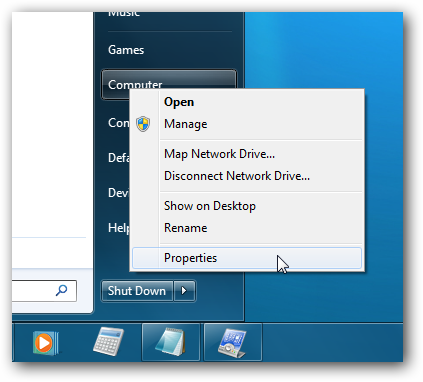
The first thing you’ll want to do is check how many days are left in your trial period. You can do this by right-clicking Computer and choosing Properties…
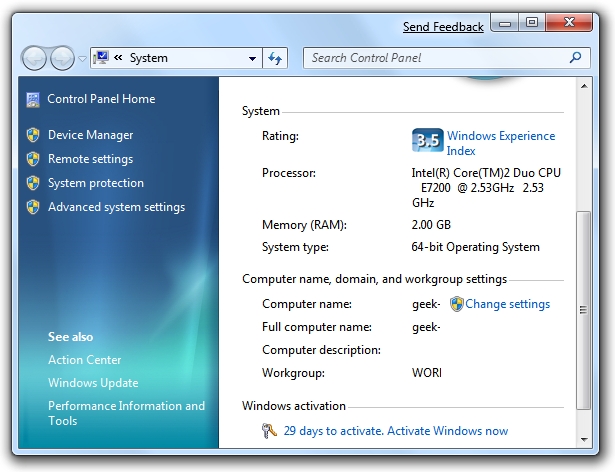
At the bottom of this window you’ll see how many days are left to activate (29 in my case since I installed this box yesterday).

Now to actually perform the hack that will extend the trial mode, you’ll want to findCommand Prompt in the start menu (or search for it), and then right-click on it and choose Run as administrator. (very important)

Windows 7 Command Prompt as Administrator
Next you’ll simply type in this command:
slmgr -rearm
Windows 7 slmgr rearm
Within a few seconds you’ll normally see this dialog show up, saying that the command has completed successfully, at which point you’ll want to reboot.
Windows 7 slmgr Success
Checking the system properties again shows that I now have 30 days left to activate.
Windows 7 Activation 30 days
Of course you’d normally want to do this near the end, probably on the last day before activation. I’m pretty sure that you can even perform this trick after the 30-day trial expires, although I’m not certain yet.
Credit Goes to - GEEK
                              

How To Use Parental Controls in Windows 7


The Parental Controls feature is a valuable tool for controlling the amount of time your children spend on the computer and the programs they’re using. Today we take a look at how to setup and use Parental Controls in Windows 7.
Parental Controls
To access Parental Controls open the Start Menu and type parental controls into the Search box and hit Enter.
3cont
Alternatively you can open Control Panel and click on Parental Controls.
4cont
When you open Parental Controls, click on the child’s account you want to set up.
5cont
Make sure to password protect your Administrator account…otherwise anyone can turn off Parental Controls and use the computer with no restrictions.
16cont
If you see a password hasn’t been set when you go into Parental Controls, click on the message and you’ll be prompted and Ensure Administrator Passwords.
2cont
Under Parental Controls mark the radio button next to On, enforce current settings. Then you can go through and control their computer time, games, and programs.
6cont
Set Time Limits
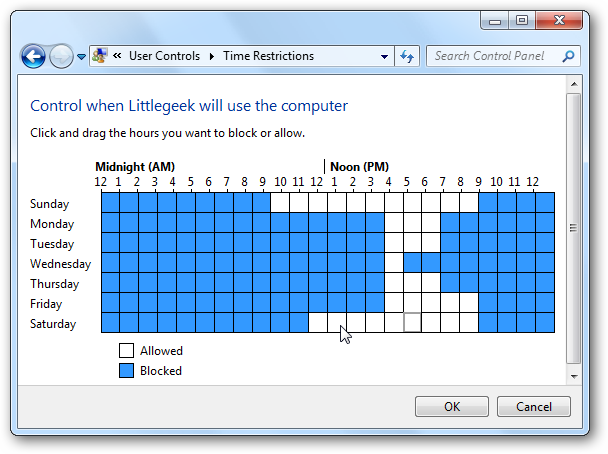
Click on Time limits to control when your child has access to the computer. If you want to only allow a few hours each day, it’s easiest to left-click and drag the mouse across all of the time slots to block them. Then allow the time blocks when you want to make the computer available.
7cont
Control Games
Click on Games to control the type of access your child has to games on the computer. You can completely block all games or select games by ratings and game names. These game ratings are based on the Entertainment Software Rating Board.
9cont
You can also select different game rating systems if it’s more appropriate for your location or if you like a certain system better than another.
12cont
You can also block games based on the type of content it contains…and it gives you a lot of choices.
10cont
Control Programs
If you want to restrict certain programs on the machine, click on Allow and block specified programs then scroll through the list of installed programs and block them.
11cont
Additional Controls 
Windows 7 doesn’t have a Web Filter included like Vista did. If you want additional controls like Web Filtering and activity reports, you’ll need to install Windows Live Family Safety which is part of the Window Live Essentials suite. With it you can block access to certain sites and also get access to an activity report that shows you what sites your children have been visiting.
13cont
Everything can be controlled online which makes it nice if you want to access a report or change settings while at work.
15cont 
The Parental Controls feature is easy to use and helps you administer how your children use the computer. Of course nothing is perfect or foolproof and the Parental Controls won’t replace good old fashioned “real parenting” but it makes it easier.

Thursday, 2 August 2012

Change windows 7 login Background


Step 1: Open the Run dialog box and type regedit

Step:2 


HKLM\SOFTWARE\Microsoft\Windows\CurrentVersion\Authentication\LogonUI\Background. If the key does not exist, add a new DWORD value with the nameOEMBackground.
Step: 3 Double click on the entryOEMBackground, and change the value from 0 to 1
reg Insert Your Image in window7 login Background
Step: 4 Open C:\windows\system32\oobe.
Step: 5 create a new folder namedinfo, and open it.
Step: 6 Create a new folder withininfonamedbackgrounds.
Rename your desired wallpaper asbackgroundDefault.jpgand place it inside the folder backgrounds (images must be less than 245KB in size).

Other Way


First download the free application here, run it.
tweaks Insert Your Image in window7 login Background
Change Logon Screen” lets you browse to a new image, “Test” will bring up your logon screen
tweaks1 Insert Your Image in window7 login Background

The Ultimate Windows 7 Guide: From Newbies To Pros


The Ultimate Windows 7 Guide: From Newbies To Pros || PDF || 

English || 50 Pages || File Size : 2.55 MB. 


If you are afraid to upgrade from Vista or XP because you feel it is completely different to what you are used to, you should read MakeUseOf’s new guide, “The Windows 7 Guide: From Newbies To Pros”.

In this 8 chapter guide, you will be able to switch from your current operating system to Windows 7 with ease. The guide covers everything you need to know from checking if your computer can run Windows 7 to utilizing all of the new features not found on other Windows versions. Plus a bunch of handy tips recommended by pros..

Windows 7 Anytime Upgrade Product Key


Windows 7 Anytime Upgrade Product Key || File Size : 1 KB. 


In as few as 10 minutes, you can turn your Netbook into a mini-entertainment center or give your laptop the ability to join a domain. With Windows Anytime Upgrade, you can add new features to Windows 7 and do more with your PC. It’s easy, quick, and you’ll keep your programs, files, and settings. All you have to do is buy an upgrade key from Microsoft or a local retail store to unlock those shiny new features. Windows Anytime Upgrade will walk you through the upgrade process step by step.


Instructions:

1) Open Windows 7 Anytime Upgrade

2) Copy a product key

3) Follow the instruction

4) Enjoy