My Blog List

Showing posts with label SECURITY TIPS. Show all posts

Friday, 3 August 2012

A-PDF Password Security v3.3.2


A-PDF Password Security v3.3.2 || File Size : 2.27 MB. 


A-PDF Password Security is a desktop utility program that lets you change password security of existing Acrobat PDF files. That means you can protect PDF files with 128 bit encryption, or remove existing password protection. It can handle either single or batch documents. Another convenient features include password pool and hot directory.

Encrypt PDF Files

Protect your PDF documents from unauthorized access with standard password security:

40-bit RC4 encryption, which is supported by Adobe Acrobat 3.0 or above.
128-bit RC4 encryption, which is supported by Adobe Acrobat Reader 5.0 or above.

Change Restrictions of PDF Files

With A-PDF Password Security, you can set a PDF file to require a password to open, and/or restrict access. For example, to allow or not allow printing, copying content, changing the file, etc.

Batch Change Properties of PDF Files

With A-PDF Password Security, you can batch edit and modify your PDFs metadata, such as PDF Title, Subject, Author and Keywords.

Installation

1. Unpack rar archive
2. Run the setup
3. Use the given serial to activate
4. Enjoy


Wednesday, 1 August 2012

How to Secure your Private Folders


Do you have any private stuff that you would to hide from your friends and relatives? Would you want it to be Invisible so that it remains unnoticed by the normal users? But there are software which can display all the folders that are present on the Disk. So What if you can even  password protect your folder? I guess having your private folder password protected as well as invisible should be secure enough. But you might think that you may need to have a software for that. Well here is a way to do that without using any additional software and you can show off in front of your friends by making their folders invisible as well as password protected. Here is is step by step procedure to create a password protected folder.
How to create a Password Protected Folder

1. Create a new folder (Right-click -> New -> Folder) and give it any name of your choice. For instance I name it as ABC.

2. Now in this folder place all the important files, documents or any folders that you want to password protect.

3. Now Right-click on this folder (ABC) and select the option Send To -> Compressed (zipped) Folder.

4. Now a new compressed zipped folder gets created next this folder (ABC) with the same name.

5. Double-click on this compressed zipped folder and you should see your original folder (ABC) here.

6. Now goto the File menu and select the option Add a password.

ie: File -> Add a password

Now a small window will pop up and here you can set your desired password. Once the password is set, the folder will ask for the password every time it is opened. Thus you have now created the password protected folder.
How to make it Invisible

1. Now Right-click on this password protected folder and select Properties.

2. At the bottom select the option Hidden and press OK. Now your folder gets invisible (hidden).

3. In order to unhide this folder go to My Computer – >Tools -> Folder options. Switch to View tab, scroll down and under Hidden files and folders you’ll see the following two options
Do not show hidden files and folders
Show hidden files and folders

Now select the second option and press OK. Now the invisible folder becomes visible in it’s location. To access it you need the password. To make it invisible again repeat step -1 through step-3 and select the first  option and click OK. Now the folder becomes invisible once again.

Remove Saved Passwords From Google Chrome, Mozilla Firefox and Internet Explorer


Before Giving Your Laptop or desktop computer to the service center for some hardware repairs.Don’t Let them to know your passwords which are saved in your Internet browsers like Google chrome, Mozilla Firefox and Internet Explorer. In this article I will tell you how you can remove your saved passwords from these browsers and stop these browsers to save your passwords.


Lets go one by one, lets start with Firefox:
Remove Saved Passwords From Mozilla Firefox


Open Mozilla Firefox and Navigate to the Tools > Options


This will open up Options Window as seen below, click on Security and Uncheck the option which says “Remember passwords for sites” and the Click “Saved Passwords” button.
Remove Saved Passwords From Google Chrome


Open Google Chrome, click on the settings icon at the right top corner and click options


On the Passwords and Exceptions screen, click the “Remove All” button to clear all saved passwords.


Remove Saved Passwords From Internet Explorer


Open Internet Explorer, hold the ALT key on the keyboard for the file menu to show up, now click “Tools > Options”


On Internet options Window, click General Tab, click the “Delete” button under Browser history section on this Window. This will open Delete Browsing History Window


On Browsing history window, check the “Passwords” option and click Delete button at the bottom of this window.


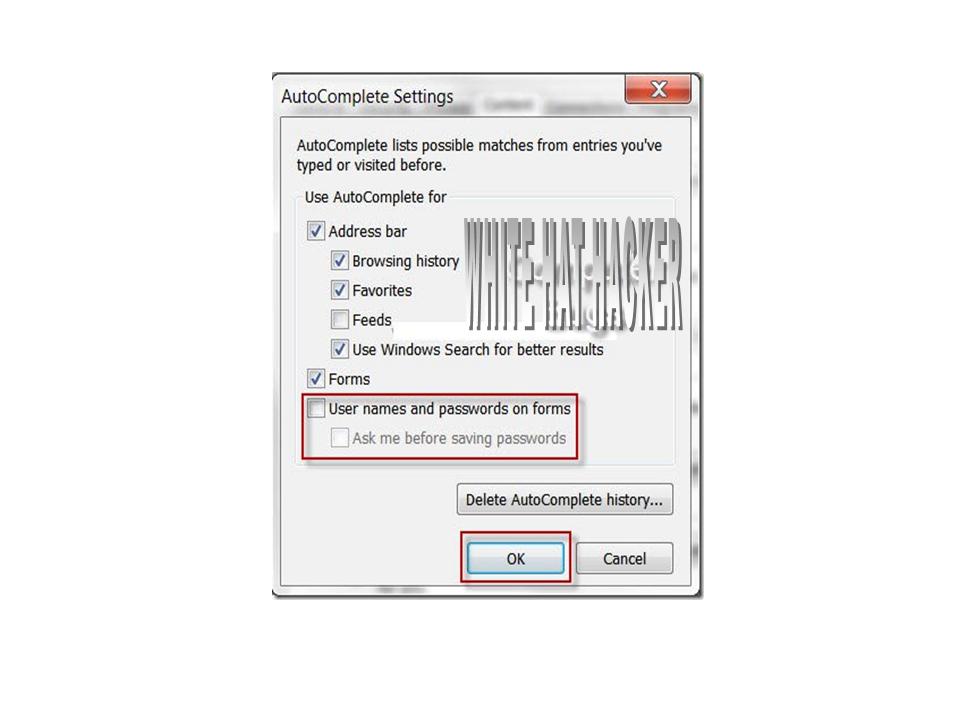
Now Click the Content tab on the Internet Options Window and click Settings Button under the AutoComplete Section.
Hope you find this tutorial useful. Leave your comments and suggestion below.